


Hej Stylus! V3 User Guide
You are reading the guide for Hej Stylus! V3, the legacy version. V4 is the current version: a separate product with a redesigned interface and its own guide. It requires macOS 15.6 or later. Switch to the V4 guide →
Hej Stylus! V3.7 Features
- Trial Mode / 2 weeks
- Always free basic smoothing
- 3 stroke smoothing methods: Position Pull, Fluid Position and Physics
- Pressure buffer and smoothing
- Tilt smoothing
- Rotation smoothing
- 3 Pressure Mapping modes
- Ruler Tools Panel: Instant Ruler, Vanishing Point, Linear Ruler, Bendy Ruler, Circular Elliptic Ruler (with Magnetiser Slider™)
- Perspective Panel: ISO / Precise Angles, 1 Point Perspective, 2 Point Perspective, 3 Point Perspective (with Magnetiser Slider™)
- Exchangeable / shareable Presets Panel for all features (.hs3 file)
- Dark Mode
- Auto-Updates
- Shortcuts for Activation, Hiding, Preferences, Presets Cycling, Ruler Tools, Perspective Tools
- Configurable indicator (color/alpha)
Requirements
- macOS 11 / Big Sur
- macOS 12 / Monterey
- macOS 13 / Ventura
- macOS 14 / Sonoma
- macOS 15 / Sequoia
- macOS 26 / Tahoe
- Online access for activation.
Compatibility
- Apple M1 / Pro / Max / Ultra
- Apple M2 / Pro / Max / Ultra
- Apple M3 / Pro / Max
- Mouse
- Touchpad
- iPad w/Pencil via macOS Sidecar or Astropad (Hej Stylus! is not an iOS app!)
- WACOM Products
- Older WACOM products: Wacom Bamboo, Graphire, Intuos 1+2+3 and Cintiq 1st gen tablet drivers for macOS Catalina and Big Sur (including M1 macs) → wacom-driver-fix
- HUION
Hej Stylus! is a ‘global’ application. This means it runs ‘on top’ of all other applications. If an application creates events programatically in itself, we’re not able to alter them. Consider Hej Stylus! being more a System Plug-On than being an application Plug-In.
Confirmed art software ✔︎
Adobe Photoshop · CSP – Clip Studio Paint · Affinity Designer / Photo · Sketch · Autodesk Sketchbook · Corel Painter · Krita · Gimp · Moho · ToonBoom Storyboard · ToonBoom Harmony · OpenToonz · Pencil2D · TVPaint · Cinema 4D · Autodesk Maya · Blender · ZBrush (except pressure functions, see below)
Confirmed software issues 💣
Adobe Illustrator (6+): jiggly line issue (position smoothing & tablet only). This bug has been reported to Adobe; Adobe devs are informed, but please vote if you want to get rid of the issue faster.
ZBrush doesn’t process our pressure curves, although they do get the signal delivered through our app. Also pending.
User Interface
This is the main view of Hej Stylus!’ user interface.
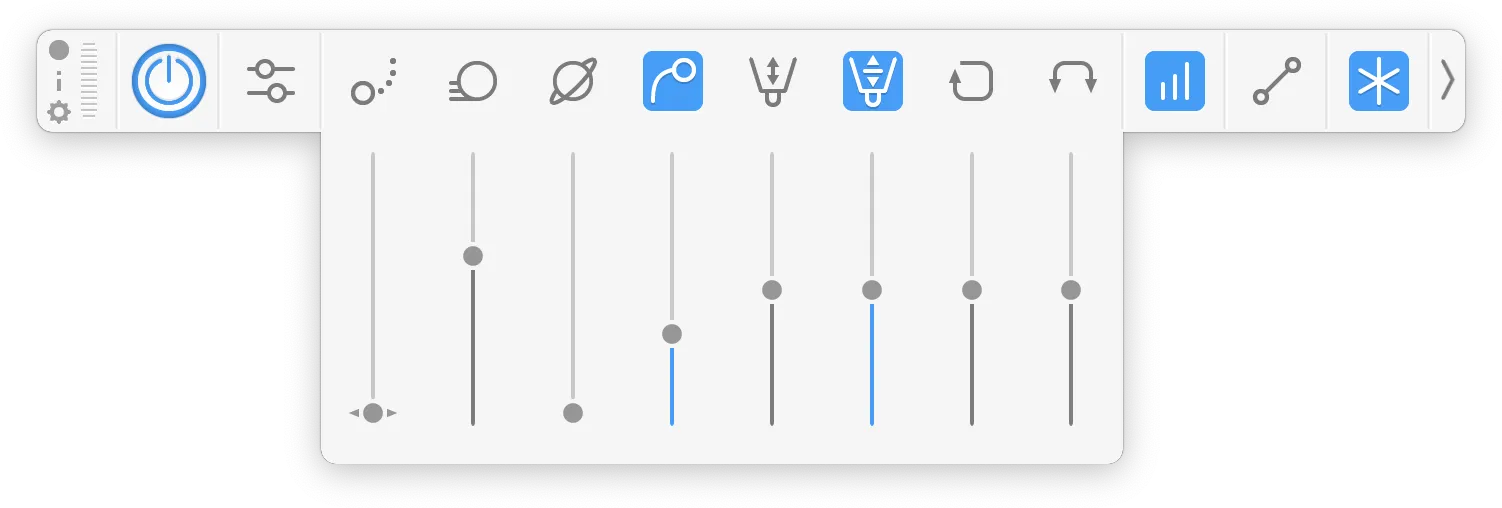
The UI has three sections: Core Functions · Smoothing Algos · Tools Section
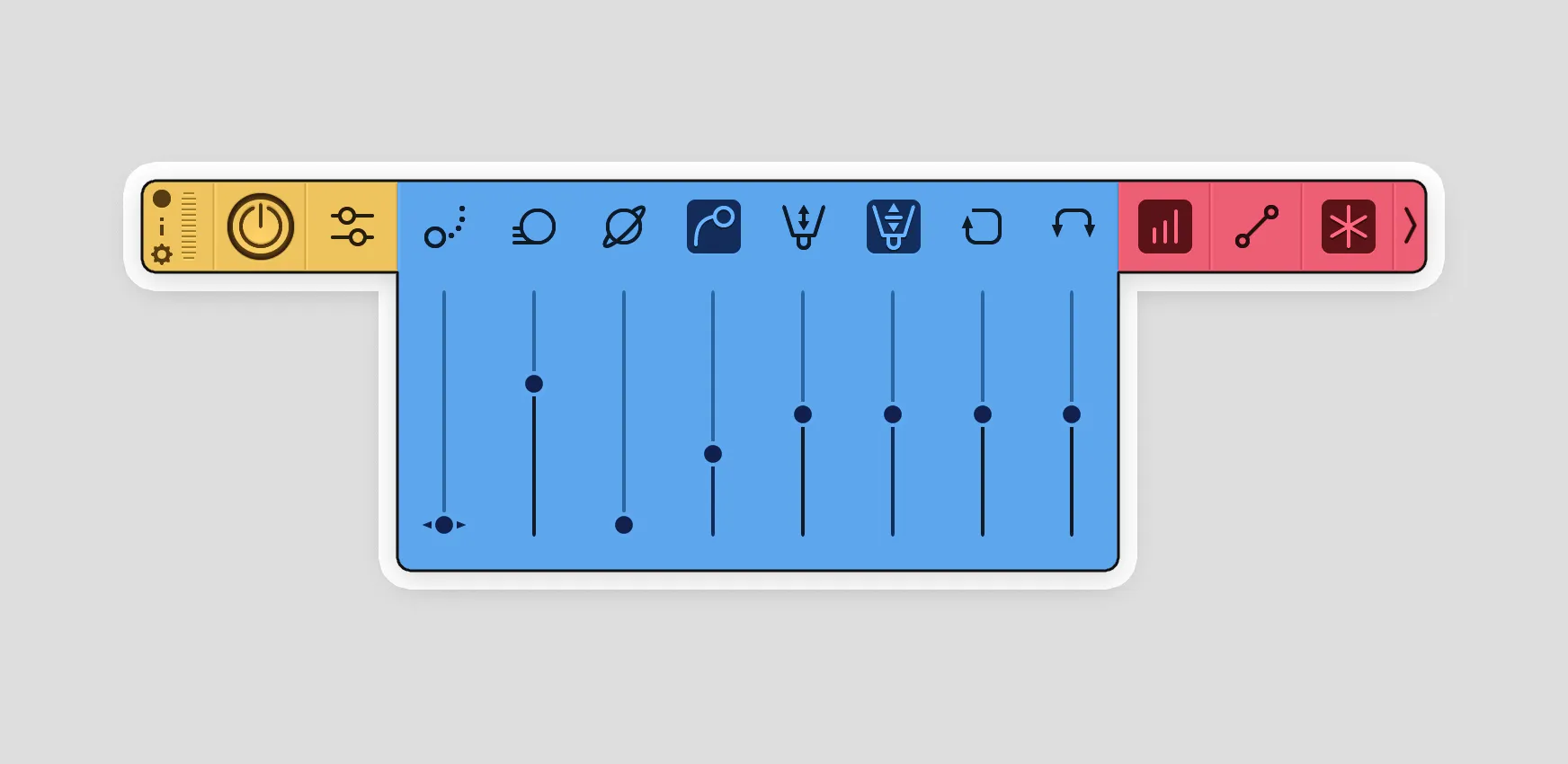
Core Functions
- Close / Quit Button
- User Guide
- Preferences
- Handle Bar: Click+Drag to move, doubleclick to send Hej Stylus! to the dock.
- Main Power Button: click to activate any of the following functions
- Presets: click to open panel, drag panel to undock
Presets Panel
- click on a preset to activate
- drag a preset to reorder
- doubleclick on a preset to rename it
- click on the X to delete a preset
- functions: load, save, make new preset
Smoothing Algos
- Position Pull: adds an offset to your cursor position / smoothes out position
- Physics: adds a spring-like follow up to your cursor position (fast)
- Space Constant: adds gravity swing to your cursor
- Fluid Position: the allround smoothing (slower), works together with pull and physics
- Fluid Pressure: good for building-up strokes / thick end
- Pressure Buffer: fine tips on both ends
- Fluid Rotation: smoothes rotation, same algo as the other fluid functions
- Fluid Tilt: smoothes pen tilt behavior
Tools Section
Pressure Mapping Panel
Linear Mapping: tap icon to activate / deactivate · choose a mapping range · bottom left = 0% Pressure · top right = 100% Pressure
Bezier Mapping: tap icon to activate / deactivate · choose a mapping range · I = 0% Pressure · II = 100% Pressure
Draw Mapping: tap icon to activate / deactivate · draw a mapping range · bottom left = 0% Pressure · top right = 100% Pressure
Ruler Panel
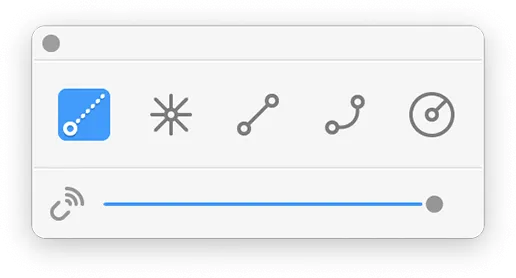 Instant Ruler: a ruled line plots instantly.
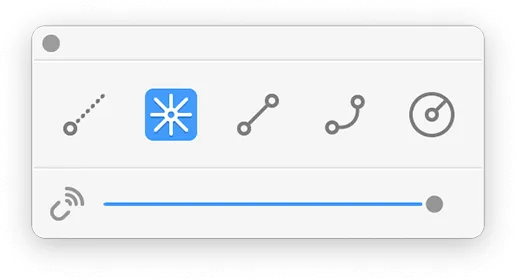 Vanishing Point: lock point by clicking on the canvas · draw lines to / from / through the VP · click or drag point to reposition
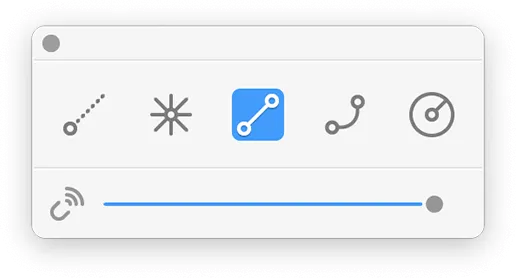 Linear Ruler: lock 2 points by clicking or by drawing/dragging · drag center third to move ruler · click or drag modifier points to reposition endpoints · doubleclick modifier points to reset ruler
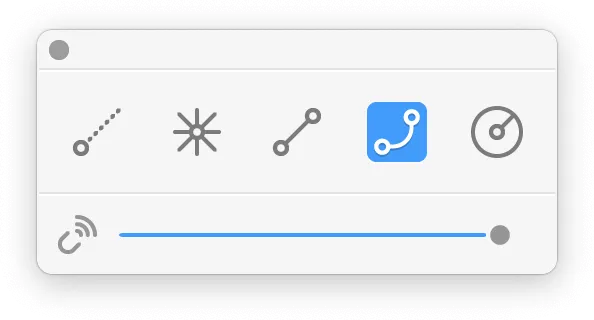 Bendy Ruler: lock 2 points · click again to set curvature · drag center third to move ruler · click or drag modifier points to reposition endpoints / curvature · CMD + drag curvature modifier to tweak curve · doubleclick modifier points to reset ruler
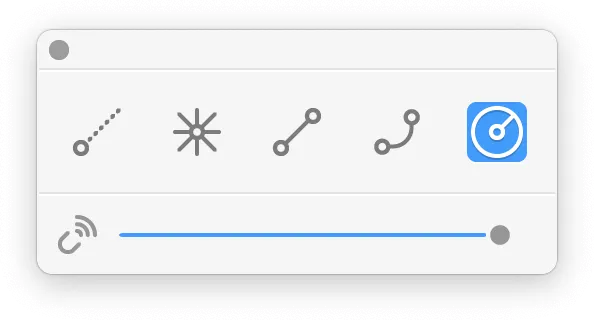 Circular Ruler: lock 2 points · hold SP∆CE whilst placing the circle by draw/dragging to shift the construct · drag / click on center point to move ruler · SHIFT + drag center point to move ruler according to its X and Y axis · SHIFT + drag outer modifier points to get 1:1 ratio · SP∆CE + drag to shift the construct · doubleclick outer modifier points to reset to 1:1 ratio · doubleclick center point to reset ruler
Precise Angles Panel
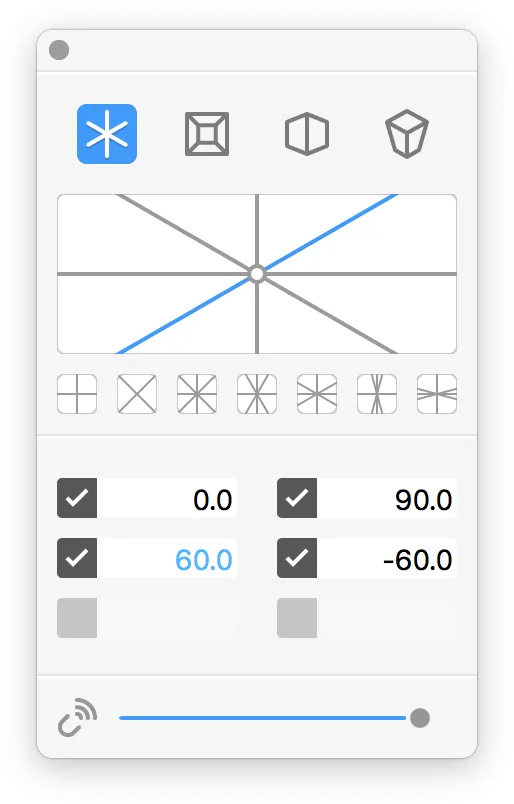 ISO / Precise Angles: Activate the precise angles panel by clicking the icon on top of the panel. Next comes the visual indication of all the set angles. The little icons below represent commonly used angle setups to draw in: 90°, 45°, 60°, 30°, 15° and 75°. These shorthands are built in. You can use the presets panel to store your own presets. The next part of the panel is for entering the angles manually (you can get very specific here). Set a checkmark and enter a value to activate the angle.
Magnetiser Slider: pull the slider to the far right to only draw with the set angles. The less influence of the magnet the more you can ‘drift’ off the set angles.
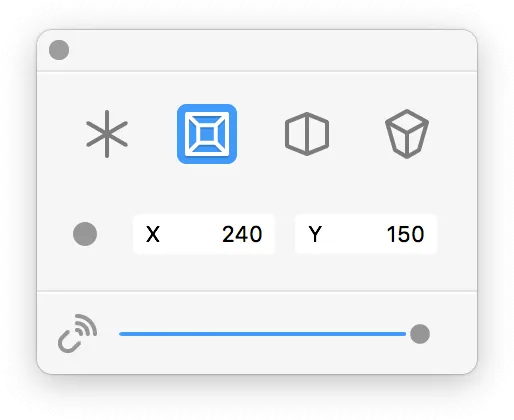 One Vanishing Point Perspective: click on canvas to set VP · now draw horizontal, vertical and towards / away from VP · click / drag on VP to reposition · click / drag with SHIFT or CMD on VP to reposition x2 or x4
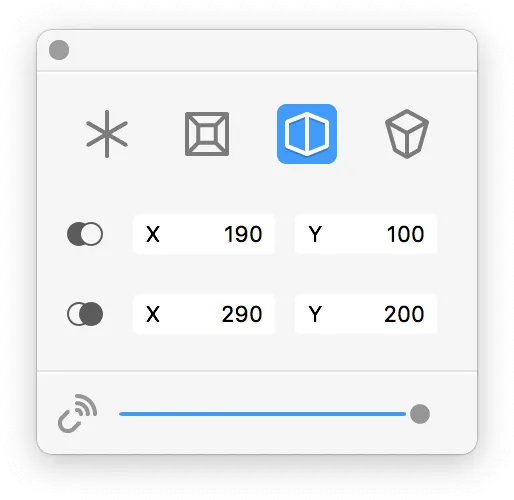 Two Point Perspective: click on canvas to set VPs · now draw vertical and towards / away from VPs · click / drag on VPs to reposition · click / drag with SHIFT or CMD on VP to reposition x2 or x4
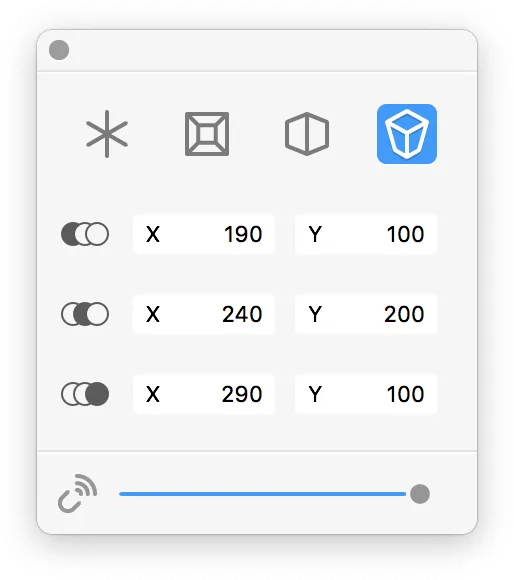 Three Point Perspective: click on canvas to set VPs · now draw vertical and towards / away from VPs · click / drag on VPs to reposition · click / drag with SHIFT or CMD on VP to reposition x2 or x4
Panel functions (all perspective tools): hover over the VP representation to highlight position · click on the VP representation to pick up / reset point · Screen center equals 0/0 · drag L/R in the number box to set X/Y position (SHIFT or CMD also works here) · double click to enter numeric value, confirm with enter
Setting VPs off screen: VPs can be set off screen, a little triangular indicator points at it · click at indicator to reset VP
Installation
- download and open “HejStylus_V3-7-7_Installer.dmg”
- Copy “Hej Stylus! V3.app” to the Applications folder.
- Open “Hej Stylus! V3.app”
- You’ll get a Gatekeeper prompt when opening for the first time. Select open.
macOS 10.14 (+): You will be prompted to allow Hej Stylus! to control your Mac. Hej Stylus! needs this to function correctly.
Open: System Preferences ⟩ Security & Privacy ⟩ Privacy ⟩ Accessibility. Click on the lock, enter your system password, click on the plus icon and navigate to Hej Stylus!. Now you’re good to go.

First Run
On the first run you will see this screen.
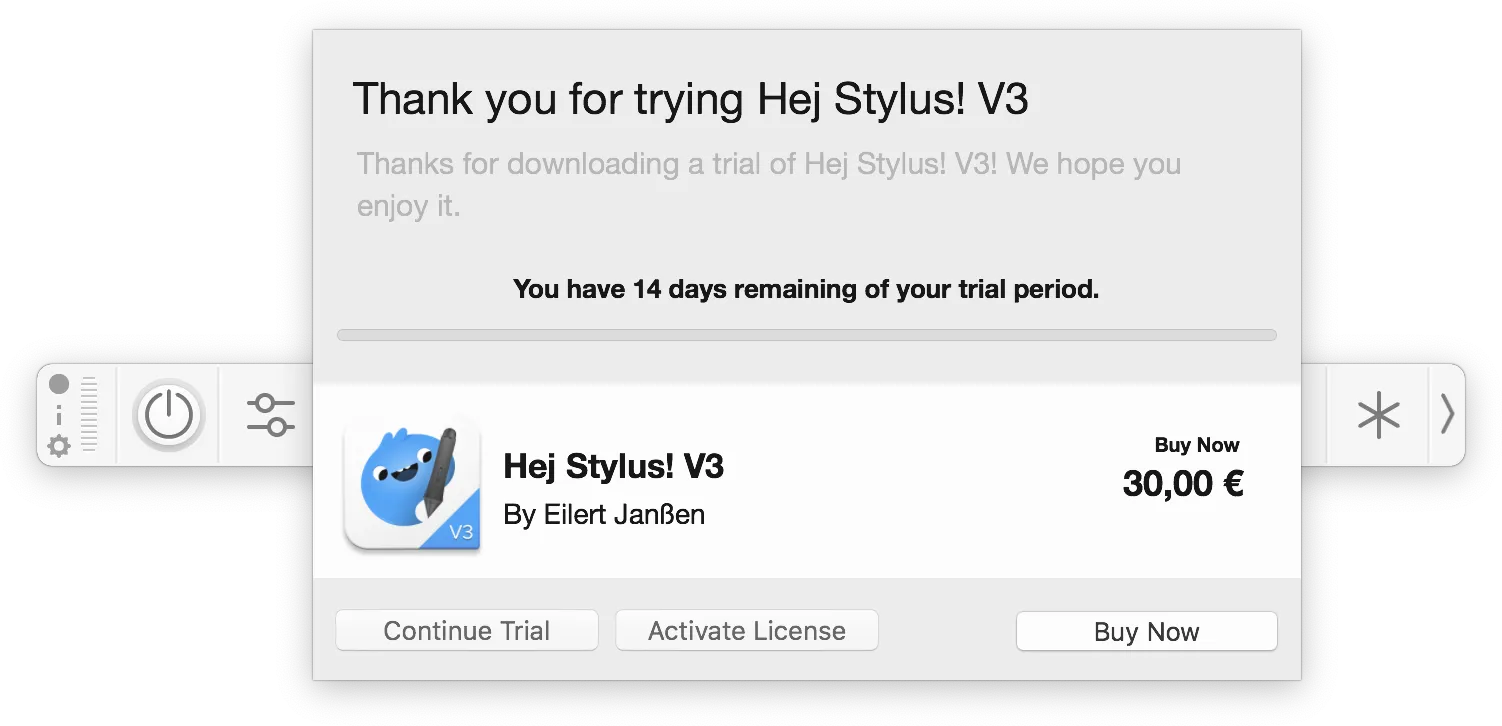
You have three options:
- Continue your 14 days trial
- Activate your already obtained License / Recover License
- Buy a license
Trial / Full vs. Free Basic Version
 Free Mode: Position Pull is always working! :D
 Regular (Licensed) Mode: All functions are available!
Note: When the trial period is done, ‘Continue Trial’ changes to ‘Cancel’. By hitting it you can enter ‘Free Basic Version’. Only ‘Position Pull’ can be activated.
Activation
After choosing option two, ‘Activate License’, you have to enter your email and the license code:
youremail@provider.com
xxxxxxxx-xxxxxxxx-xxxxxxxx-xxxxxxxx-xxxxxxxx
Preferences
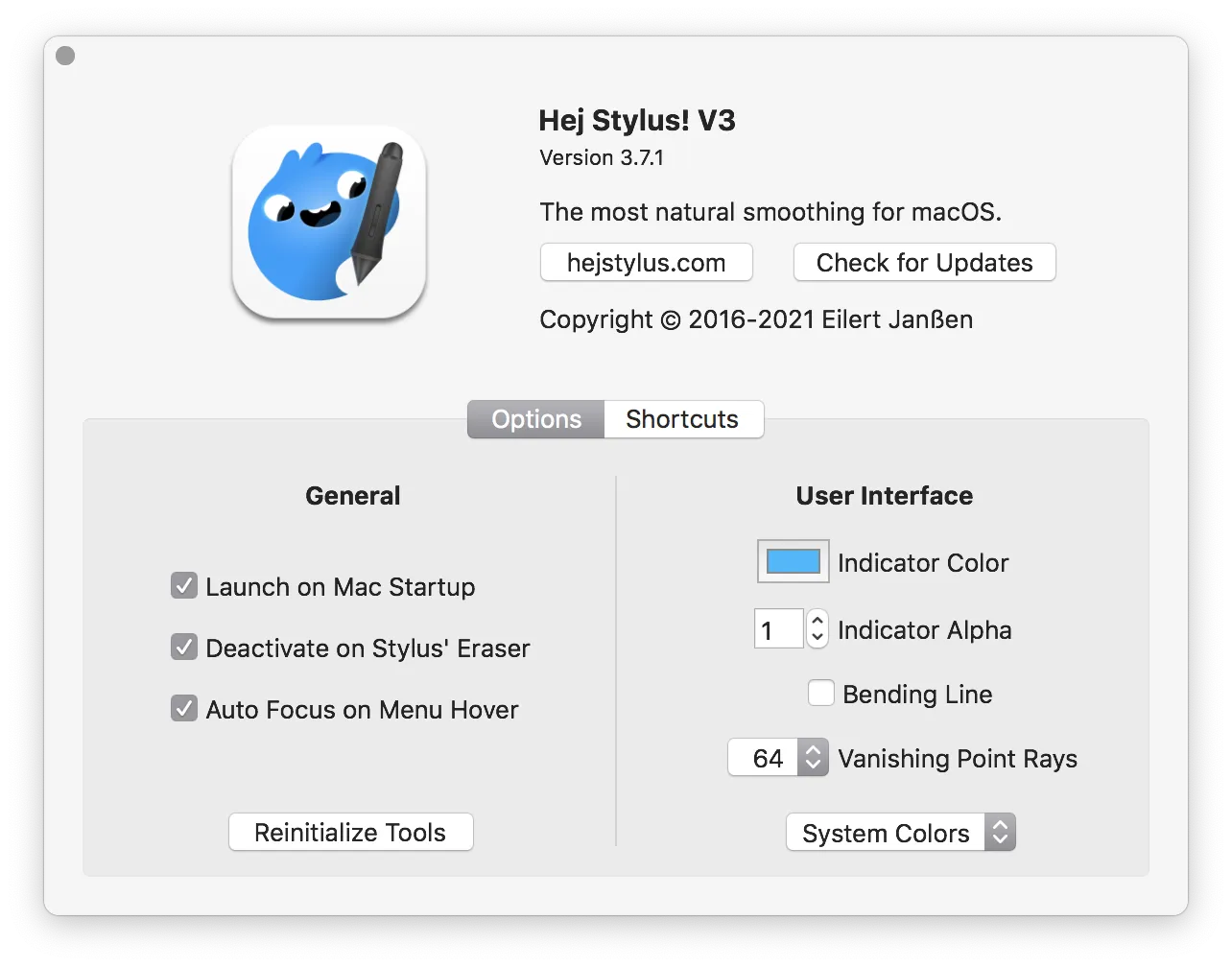
Options
- Check for Updates: checks if you’re running the latest version; if not, an optional download/install handles the rest.
- Launch on Startup: highly advised. :D
- Deactivate on Eraser: also highly advised.
- Auto Focus on Menu Hover: Hej Stylus! catches your cursor when moving into its perimeter; it saves a click but can be distracting. If so: deactivate!
- Reinitialize Tools: whenever there should be an issue with any of the tools, press this button. Resets all tools to ‘factory settings’; presets and preferences stay untouched.
- Indicator Color: make your custom cursor color.
- Indicator Alpha: define the alpha to be less prominent. Set to zero to have no indication at all.
- Permanent Helper Lines: all perspective grids stay (gently) on the canvas whilst working.
- Vanishing Point Rays: select the amount of rays when placing a Vanishing Point.
- UI Mode Selector: select Dark / Light UI override or use your system’s UI colors.
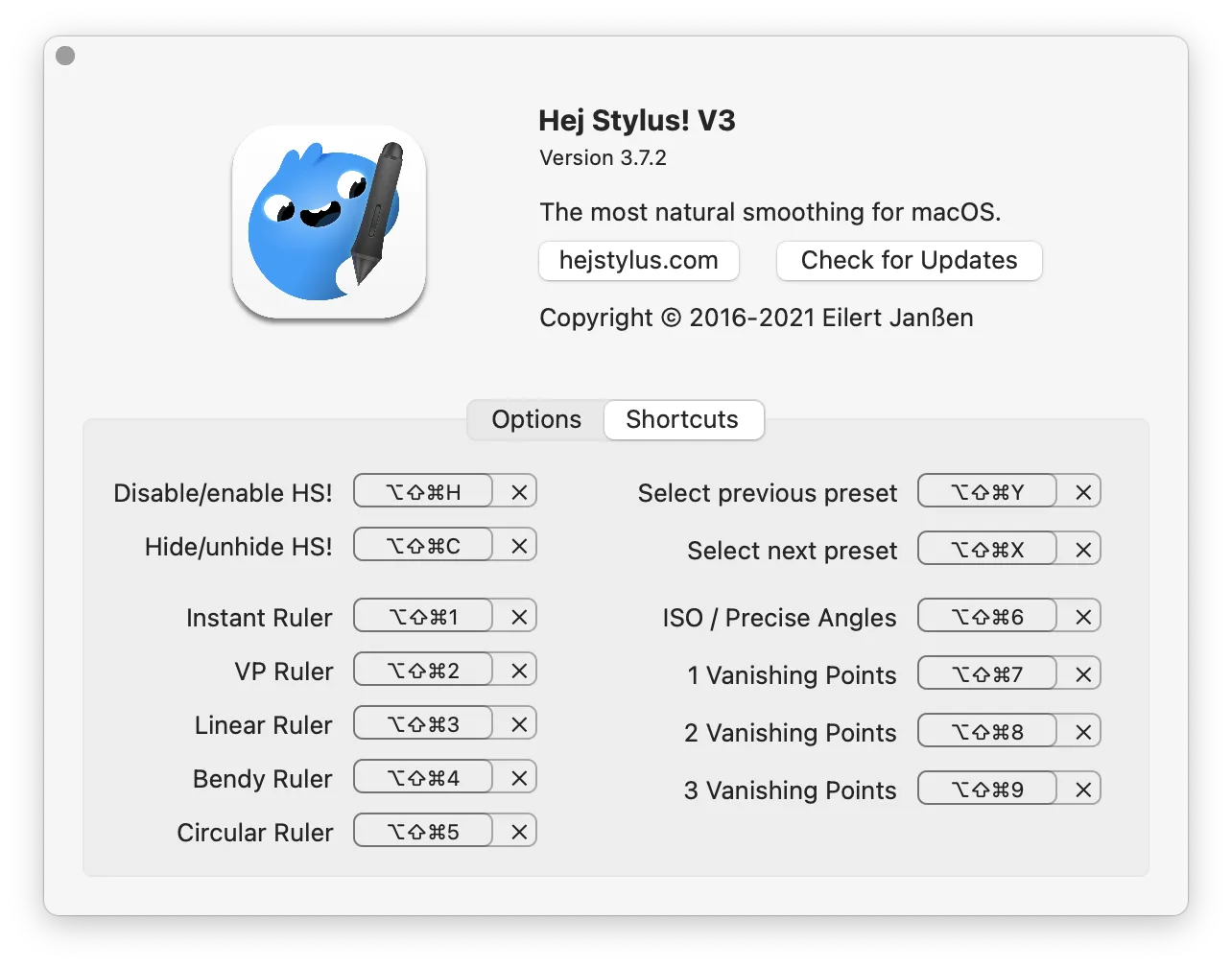
Shortcuts
Version 3.2+ supports custom shortcuts. Click in the field next to the desired function and perform the shortcut as you want it to be. If it refuses yours, try another one. To assign a new shortcut, press the X and record a new one.
Pro Tip: After setting up the shortcuts in Hej Stylus!, quit and set up the desired shortcuts in the Wacom driver for express buttons or pen button(s). Big timesaver!
Presets
This is a Hej Stylus! Presets File (.hsv3). Save your favorites and send them to a friend. ❤︎
Version History
3.7.7: Licensing now on display · Your licensing status is now on display in the preferences, cheers!
3.7.6: macOS Paddle fix, new licensing · Native licensing, now handled in-app with no external SDK; activation is faster and fully native. · Sonoma/Tahoe freeze fixed (the old licensing dialog could freeze the app on macOS Sonoma 14.x and Tahoe; that dialog is gone). · Automatic upgrade for existing customers: if you bought before 2026, your license is migrated silently on first launch.
3.7.5: macOS Tahoe / Paddle fix · Fixes a hang issue with our reseller’s licensing UI · Fixes various UI bugs in macOS Tahoe
3.7.4: The Perspective Edition, Refined II · Fixed an issue with Fluid Position algo: drawing in tiny spaces works again
3.7.3: The Perspective Edition, Refined · Added move whilst placing action & new move action to the Circular Ruler · Removed the bendy line indicator · Added linear helper lines to all position smoothing features · Added a function to chainlink the different position smoothing features · Added ‘Permanent Helper Lines’ option · Improved perspective drawing tools & helper lines · 100% faster UI
3.7.2: More Shortcuts · All rulers and perspective tools can be activated via shortcut
3.7.1: New Feature & Fixes · Added a Vanishing Point Rays amount chooser in Preferences · Several bugfixes on the Rulers and Perspective Tools
3.7.0: The Perspective Edition · New Ruler Panel · Solo-ed Ruler Tools & updates for all ruler functions · New UI on the ruler indicators & placement · New Perspective Panel · One, two and three point perspective tools added · Many small improvements / fixes
3.6.0: The Sidecar Support Edition · Full Sidecar / Apple Pencil support · Improved multi-screen support · Improved HUION support · New Ruler Panel with Magnetizer Slider · Fixed a compatibility bug with PS2020 · Improved Bendy-Ruler algorithm plotting · Tool Tips · Many small improvements / fixes
3.5.1: The Catalina Edition · Implemented Catalina licensing support
3.5.0: The Dark Edition · Bend radius of Bendy Ruler adjustable via CMD + drag · Dark Mode option · Auto Updates · Reinitialize Tools function · Lots of under-the-hood improvements on Rulers and Angles, improved Pressure Mapping UI, resolved secondary screen issues
3.4.0: Precise Angles Edition · New Tool Panel: Precise Angles (draw in up to 6 fixed angles simultaneously)
3.3.0: The Early Santa Edition · Bending and moving feature for the linear ruler · New Tool: Circular Ruler
3.2.1: Various Fixes · macOS 10.11 El Capitan toolbar not unfolding (fixed) · macOS 10.12 Sierra preferences window not showing up (fixed)
3.2.0: The Shortcuts Edition · Configurable shortcuts (toggle on/off, preset previous/next, activate/deactivate ruler, hide/unhide toolbar) · UI fixes · In-app purchase and activation online · Basic HUION support (position algorithms)
3.1.2: More Fixes · Colorspace crash on indicator color fixed · undockable Pressure Mapping panel display fixed · Linear Pressure Mapping clamping fixed · UI improvements
3.1.1: Various Fixes · Preset window not showing after making a new preset (fixed) · license string length issue fixed · Physics bug that could stop PS fixed
3.1.0: The Ruler Edition · New: The Ruler with preset-able position · Undockable Presets and Pressure Maps · Auto-collapse UI · Lots of under-the-hood improvements
3.0.1: Various fixes · Preset-making turned off Fluid Tilt in some cases (fixed) · Deactivate-on-eraser init after restart (fixed) · Menu could slip off-screen (fixed) · Multiple instances (fixed) · Info overlay froze (fixed) · Added option to alter auto-catching the cursor
3.0.0: Initial build · Completely recoded (faster & lightweight) · Completely redesigned (new on-screen UI & icon-driven approach) · Auto-hiding slider panel · 3D-Slider · On-screen help · Improvements on all algos · Easy-access Presets with ad-hoc editing · New: Physics Smoothing (2 sliders: Physics & Space Constant, uses actual physics!) · Draw Pressure Mapping Panel
2.0.2: Various fixes · demo duration · Pressure Mapping point alignment · license field · font issues · dark menubar icon · mission control display · privacy settings request
2.0.1: Sticky Key Fix · Fixed Sticky-Modifier-Key bug
2.0: Initial build
1.0.4 · 1.0.3 with the latest Wacom fixes (Illustrator bug) for systems below OS X 10.10; delivered as optional download for 2.0 customers.
1.0.3 · Icon fix for low resolutions · right-click for menu bar icon (10.8.5/10.9) · shortcuts to toggle/increase/decrease radius · indicator on scaling · fixed Gumroad ‘already purchased’ bug · fixed licensing full version bug · fixed Ninja-mode / off-set indicator / right-click issues
1.0.2 · Support for OS X 10.8.5+ · Trial mode · indicator on any screen in dual-screen mode · new radii selector (10, 50, 100, 500) · smoothing deactivation whilst dragging the slider
1.0.1 · License implementation
1.0.0 · Initial build
Issues & Feedback
Questions, bug reports or feature requests? → Contact us. I’ll get back to you. Pronto.